If you've been meaning to get a website for months but keep picturing weeks of back and forth with a developer, this guide is for you. You can do the whole thing yourself in one sitting, and you don't need to know anything about websites.
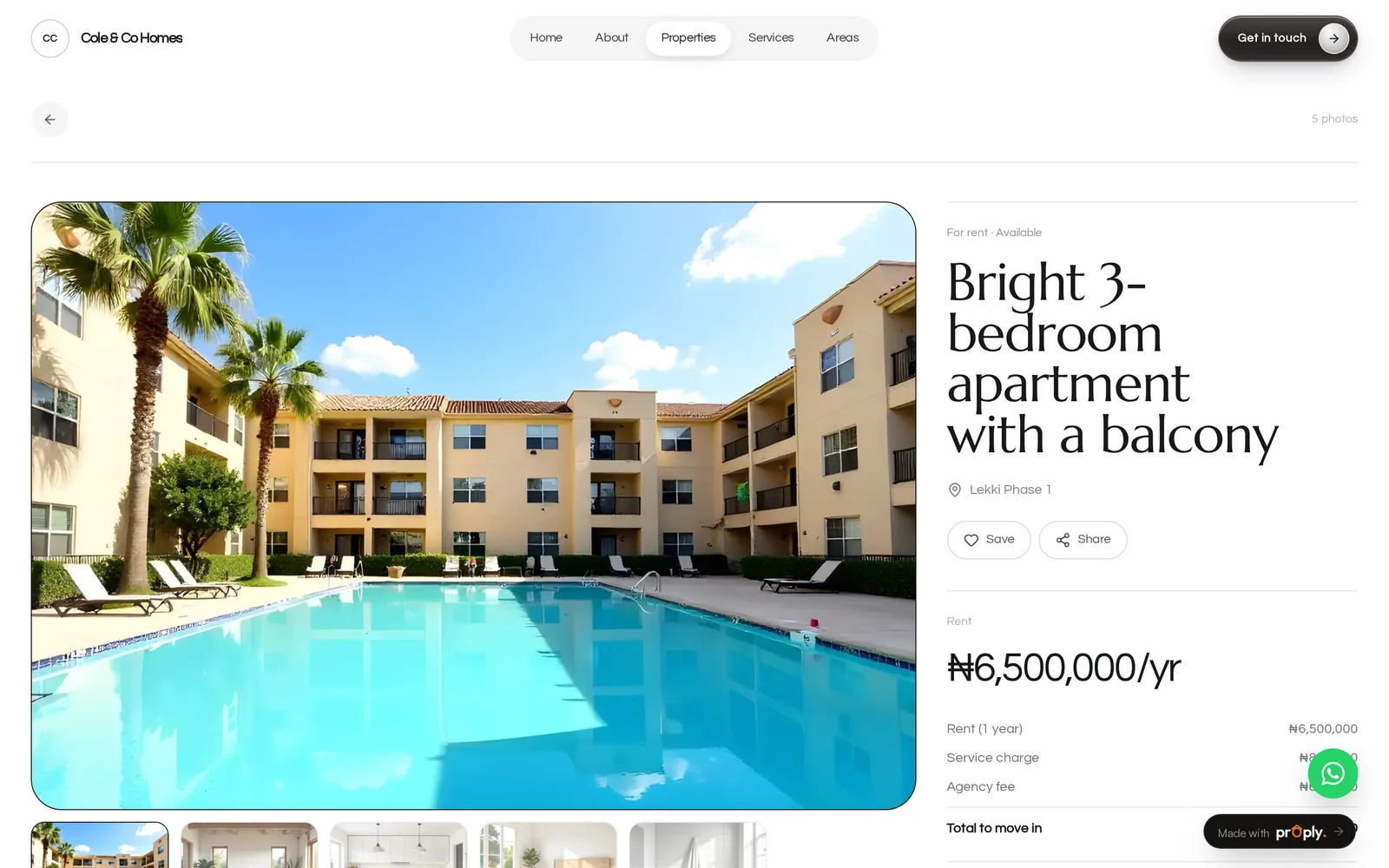
To make sure every step here is right, we built a website from scratch for a made-up agency called Cole & Co Homes. The screenshots below are from that run, so what you see here is exactly what you'll see.
The short version
- Sign up at proply.site/signup and click Create website.
- Type your business name. Your free web address fills itself in.
- Pick a template you like. You can change it later.
- Choose Launch quickly and work through seven short screens: brand, contact, homepage, about, locations, properties, publish.
- Click Publish website. You're live.
The rest of this guide walks through each step, with what to type and what to avoid.
What to have ready
You can start with nothing, but these four things make it go faster:
- Your business name, written the way clients already know it.
- Your logo, if you have one. A PNG with a see-through background looks best.
- The phone and WhatsApp numbers you want clients to use.
- One property you can list today, with five or six good photos.
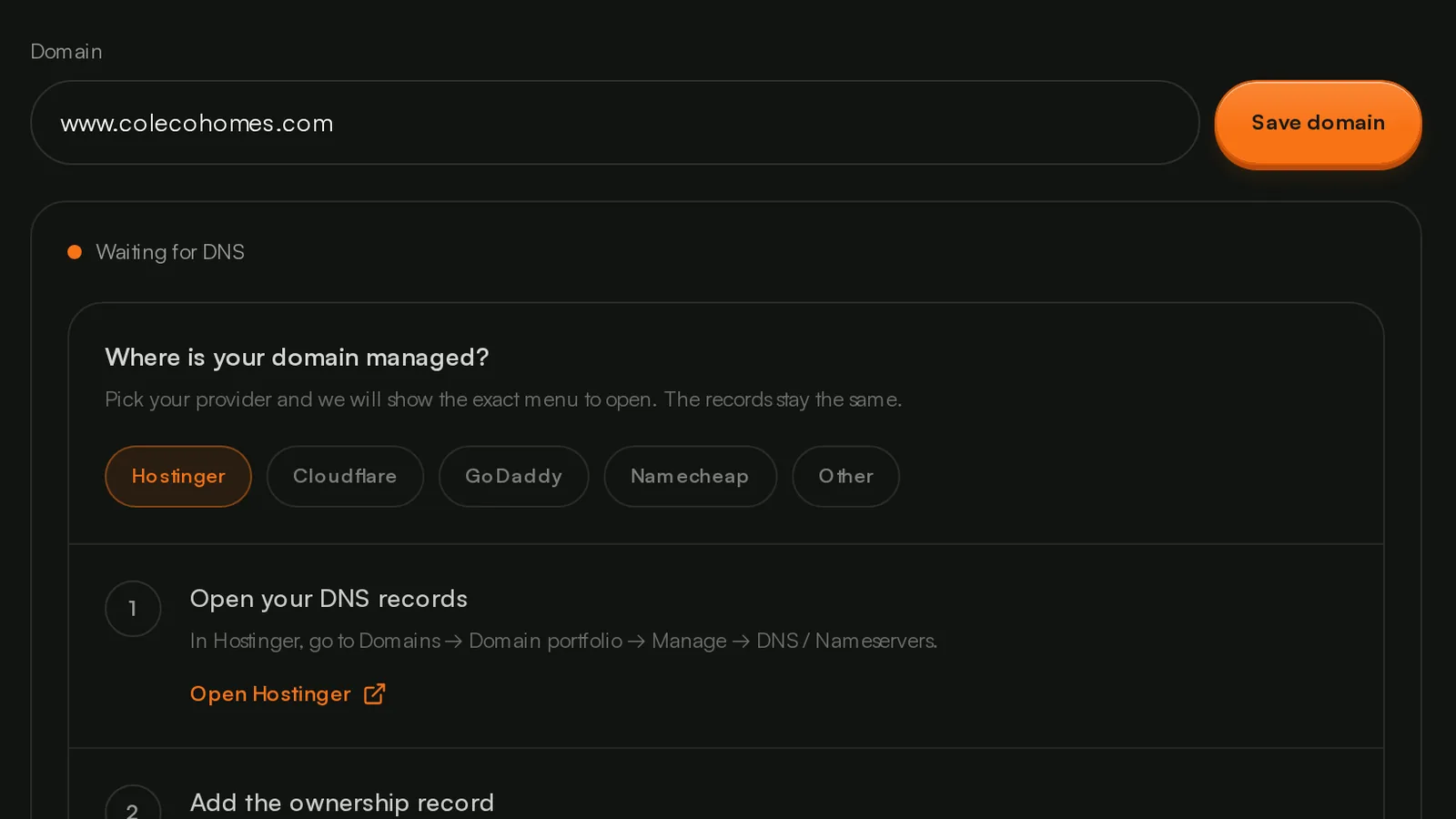
What you don't need is a domain name. Every website gets a free address like yourname.proply.site. If you want www.youragency.com later, you can connect your own domain in a few minutes.
Step 1: Sign up and start your website
Go to proply.site/signup. You can sign up with your email or your Google account. Once you're in, the dashboard has one job for you.
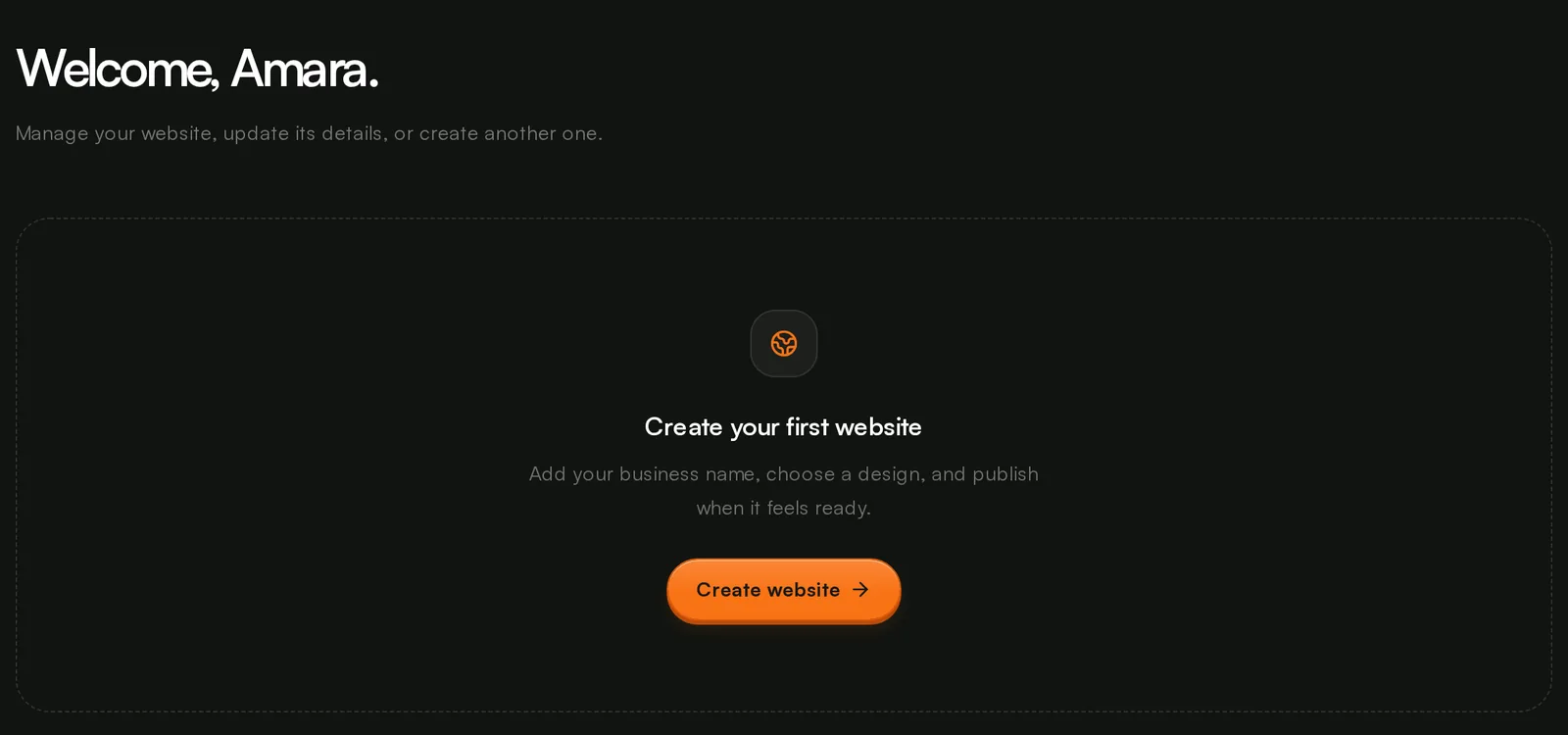
Click Create website.
Step 2: Name your business and pick your link
Type your business name. As you type, Proply turns it into your web address. When we typed "Cole & Co Homes", it became cole-co-homes.proply.site on its own.
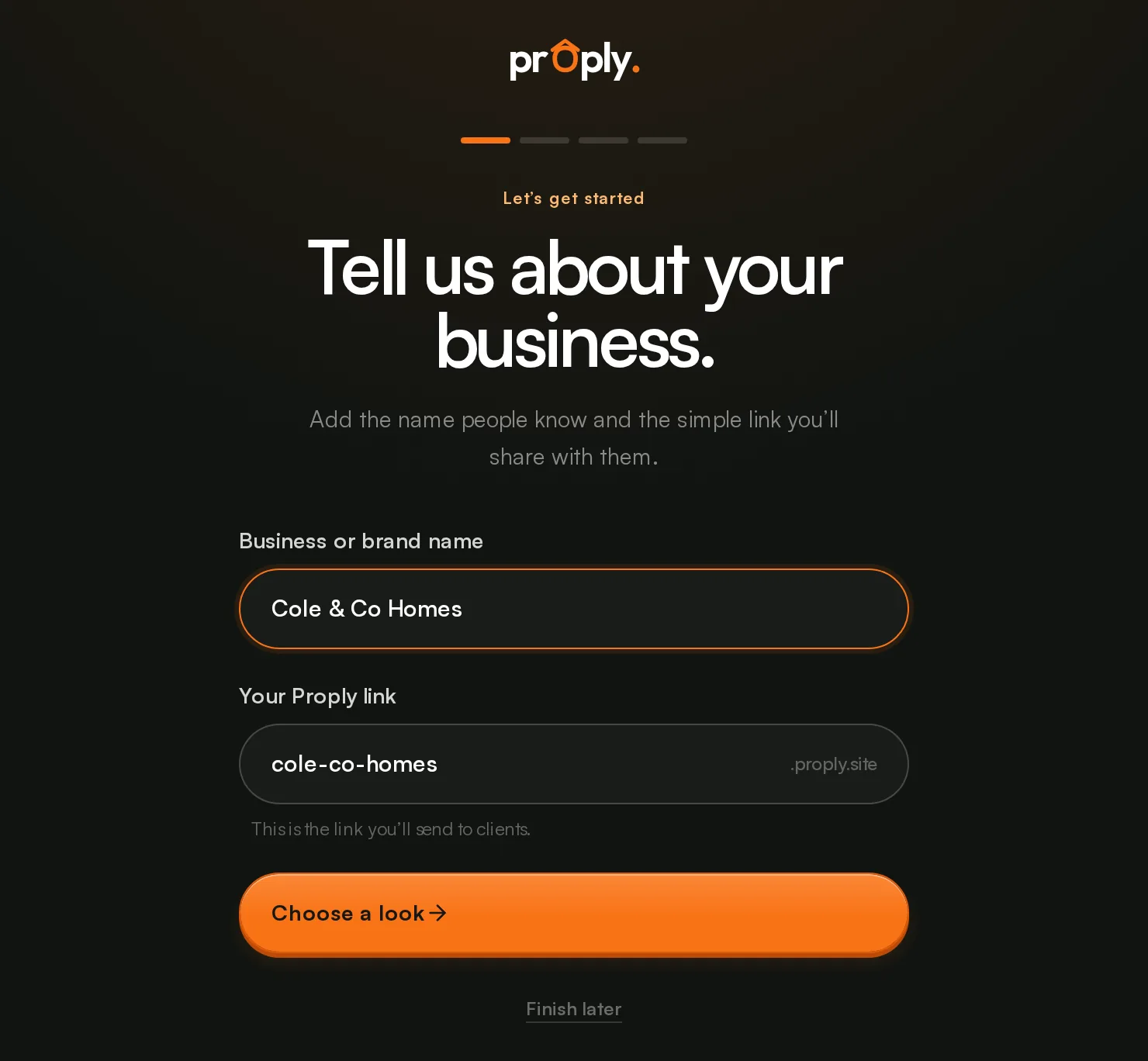
Take ten seconds over the link, because you'll be sharing it a lot: in WhatsApp chats, on flyers, in your Instagram bio. Ask yourself one question. Could a client type it after hearing you say it once? If not, shorten it. You can edit it right there.
Step 3: Choose a template
Next you pick how your website looks. Every template has a Preview full website link, so you can click around a finished site before you choose.
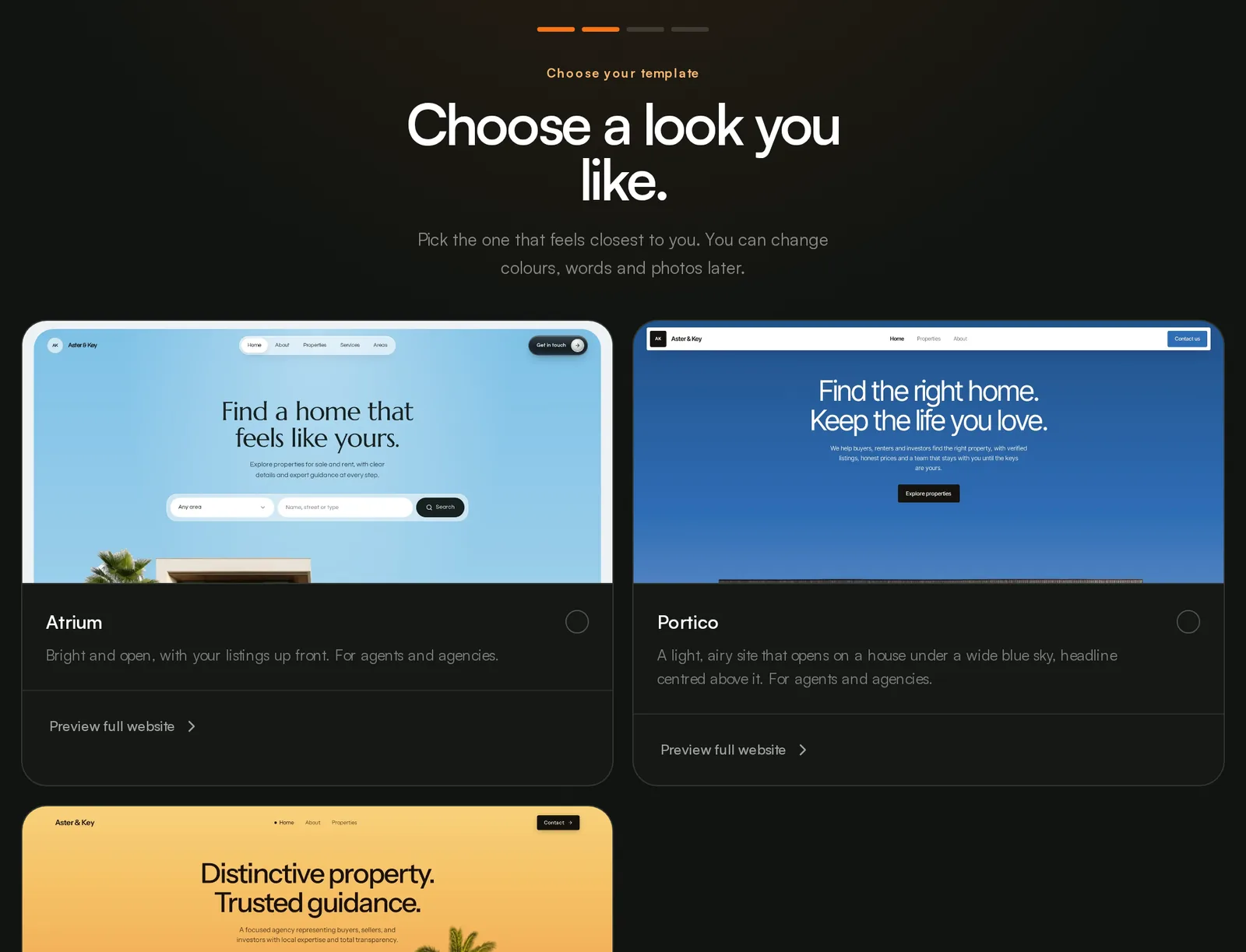
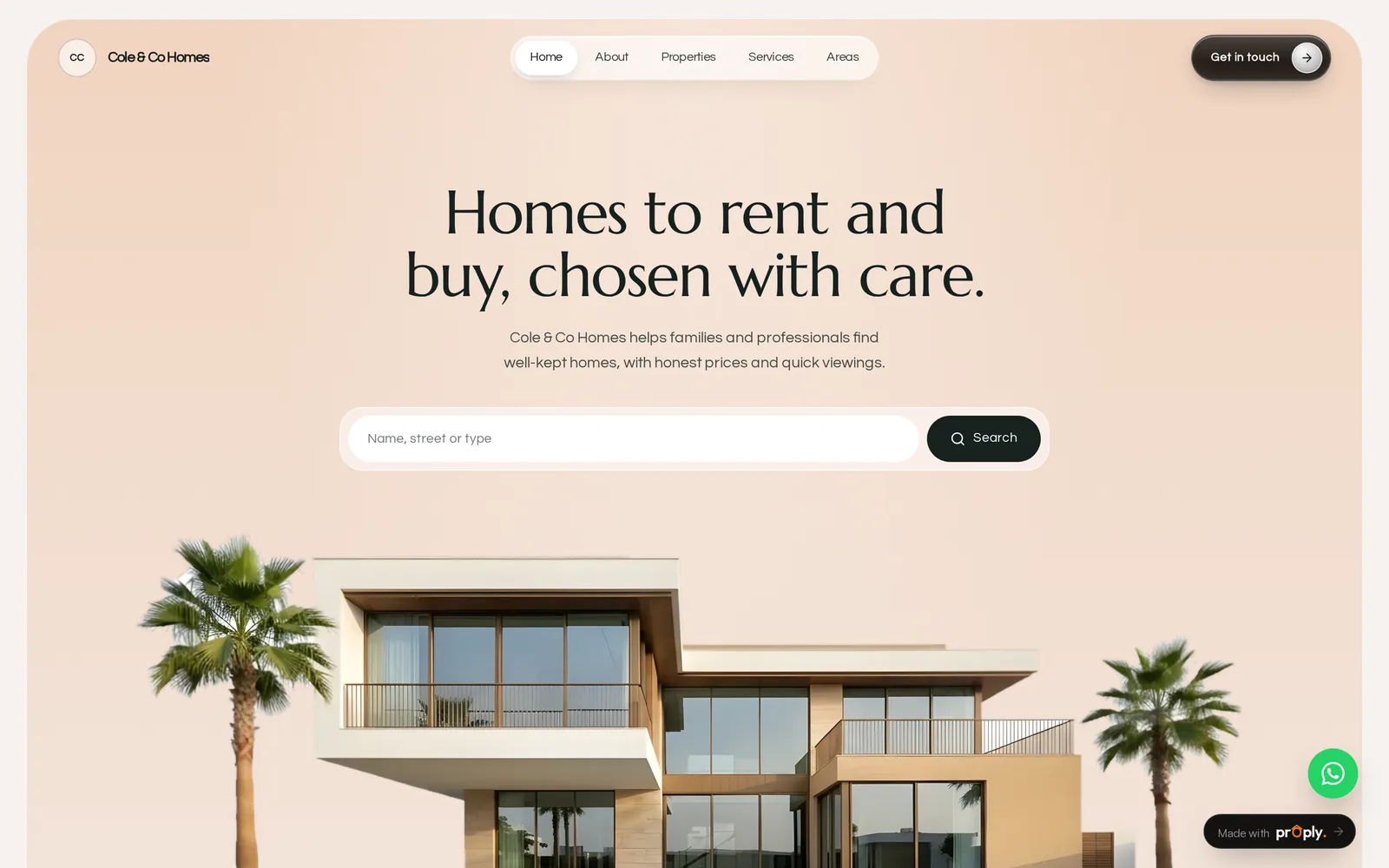
Don't agonise over this one. Your colours, words and photos all change later, and if you switch templates down the line, your listings come with you. We went with Atrium because it puts a search bar and the listings right at the top, which suits an agency with lots of properties.
Step 4: Pick an opening animation
When someone opens your website, it can play a short animation with your logo. It only plays once per visit, and visitors can tap to skip it. Pick a style or switch it off.
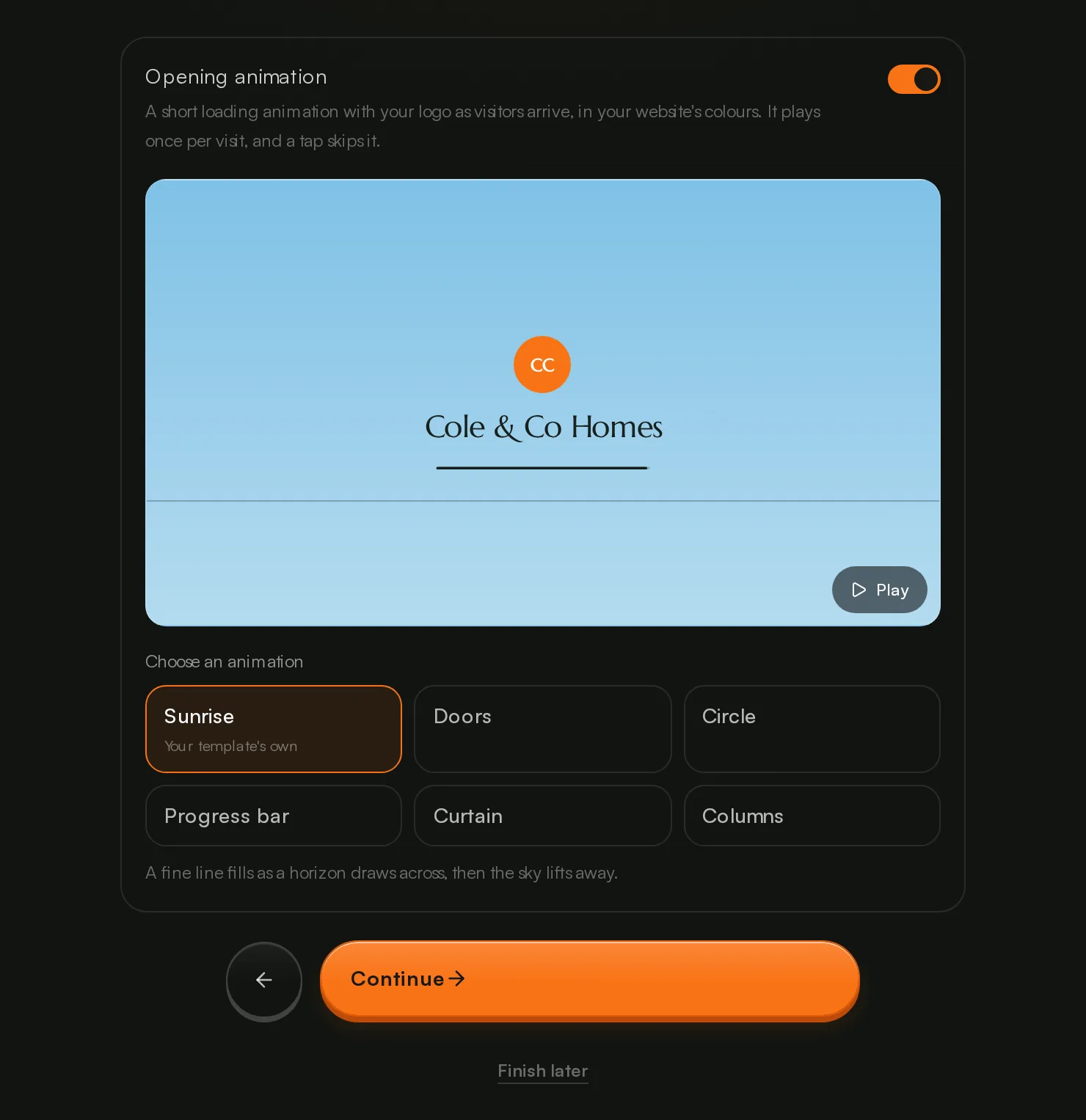
Not sure? Leave the one the template suggests. It's the least important choice you'll make today.
Step 5: Choose how you want to set up
Now you choose between two ways of working:
- Launch quickly asks for the essentials, one screen at a time.
- Open the full editor shows every part of your website with a live preview beside it. It's great on a laptop when you want to fine-tune everything.
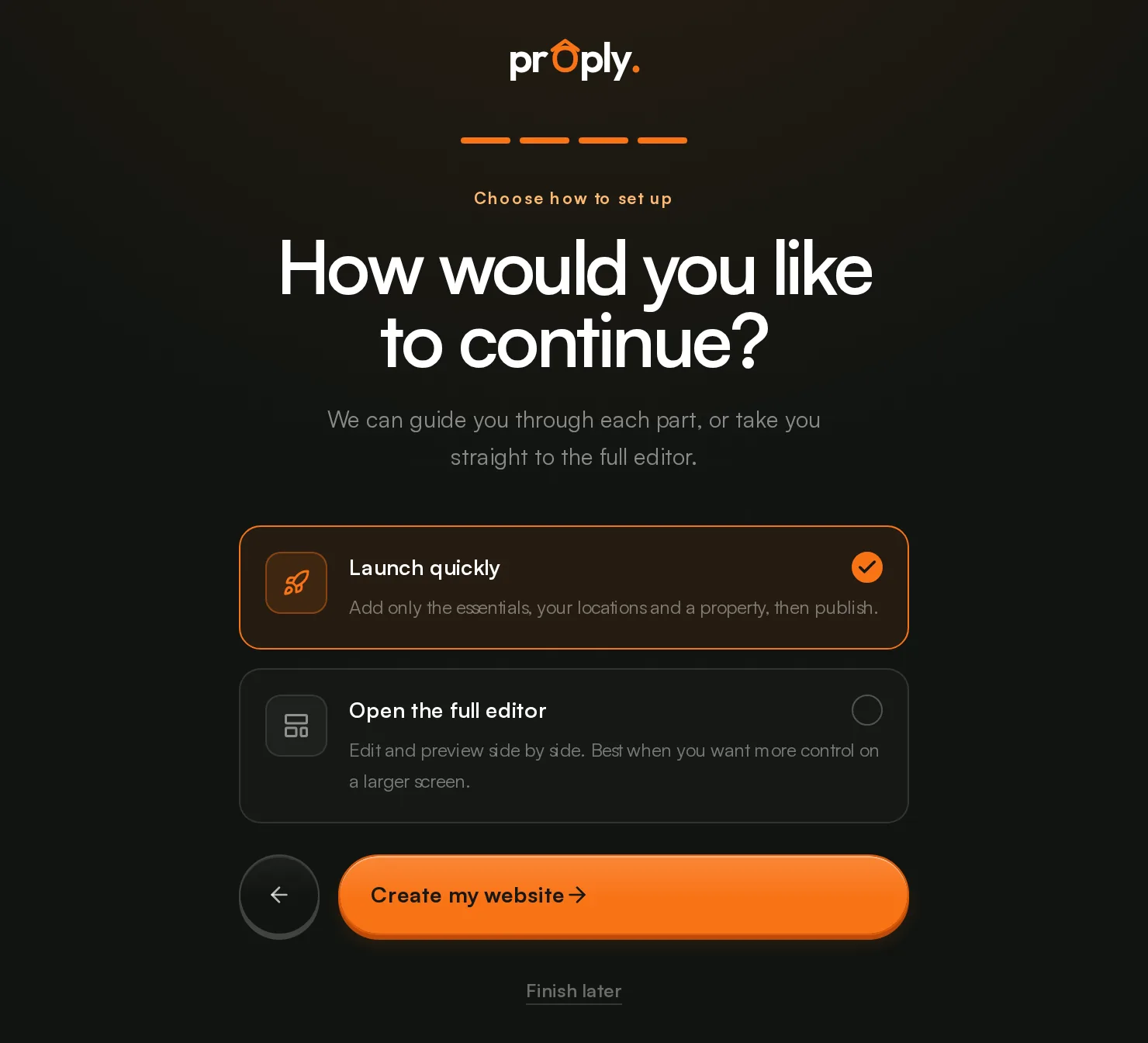
For your first website, pick Launch quickly and click Create my website. You can always open the full editor afterwards.
Step 6: Fill in the seven quick-launch screens
The numbered dots at the top show how far along you are. Each screen saves when you click Save and continue, so you can stop and come back without losing anything.
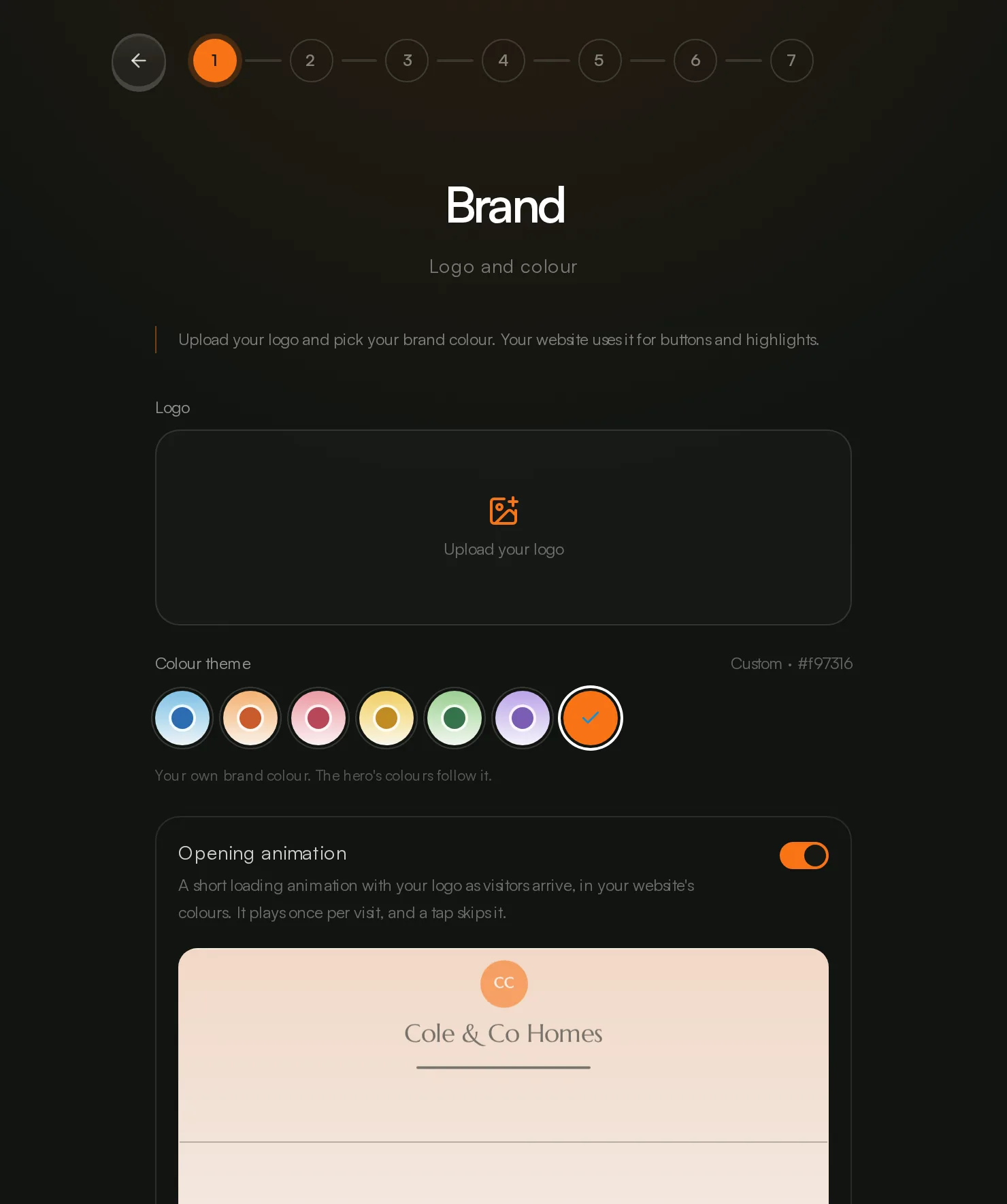
Brand: logo and colour
Upload your logo and choose a colour. The website uses it for buttons and highlights. If you have a signboard or business card, match that colour so everything you put out looks like it comes from the same business.
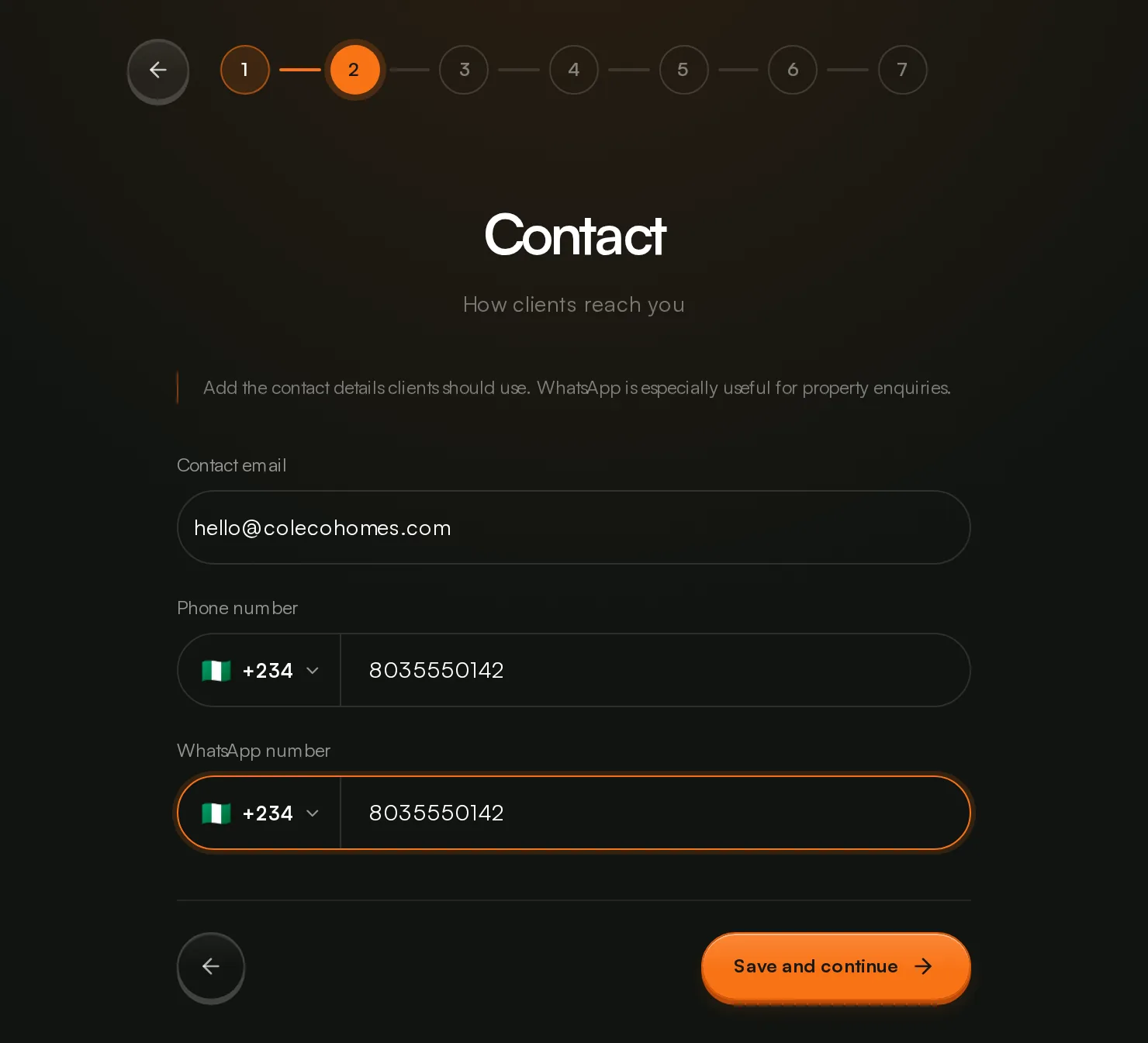
Contact: how clients reach you
Add your email, phone number and WhatsApp number. These show on your website, and the WhatsApp number powers the green chat button on every page.
One thing that catches people out: alerts about new enquiries go to the email you log in with, not the one you type here. If you want them somewhere else, log in with that address.
Homepage: the first thing people read
The template fills this in with a placeholder line. Please replace it. A heading like "Find a home that feels like yours" could belong to any agent anywhere; yours should only fit you.
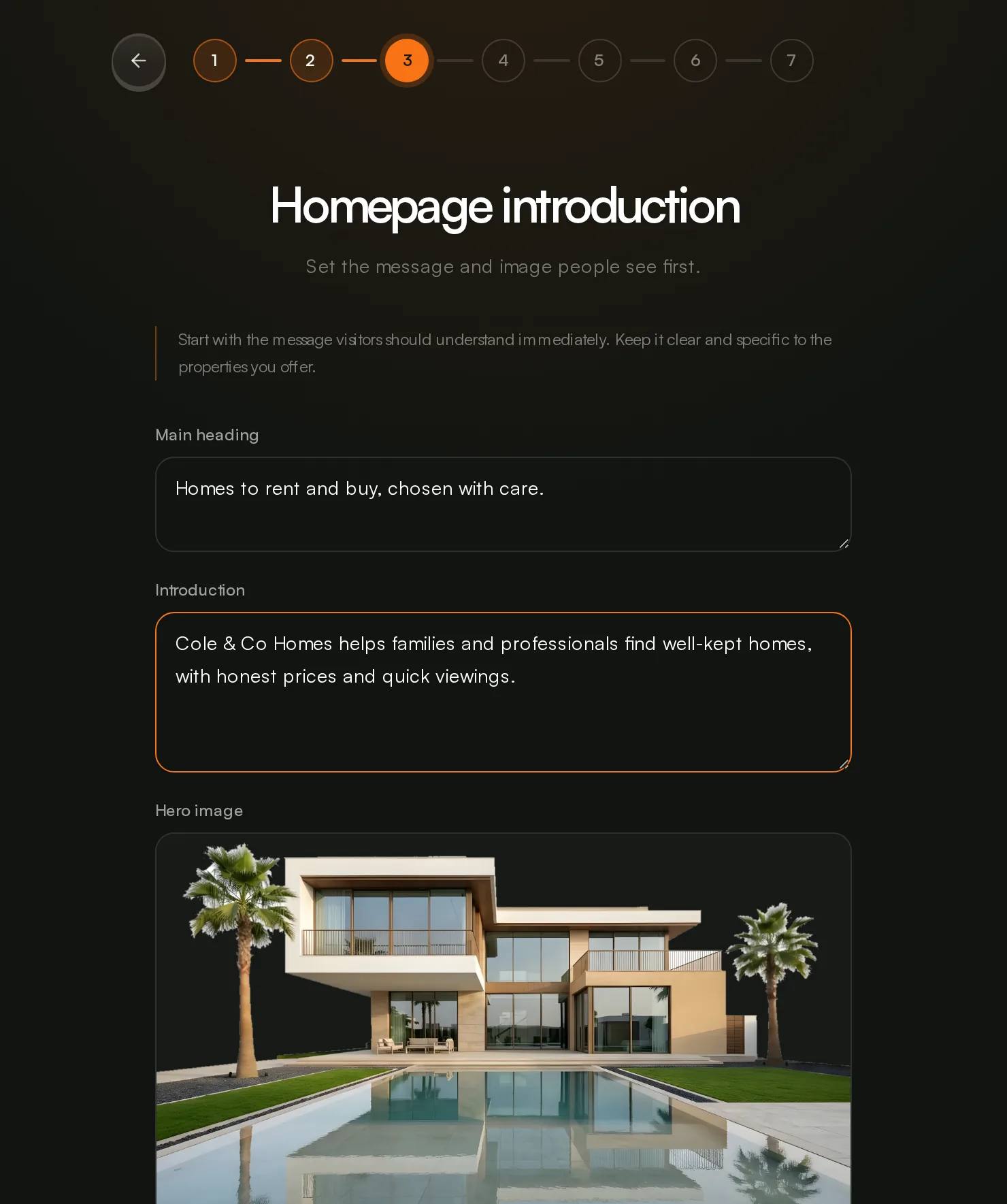
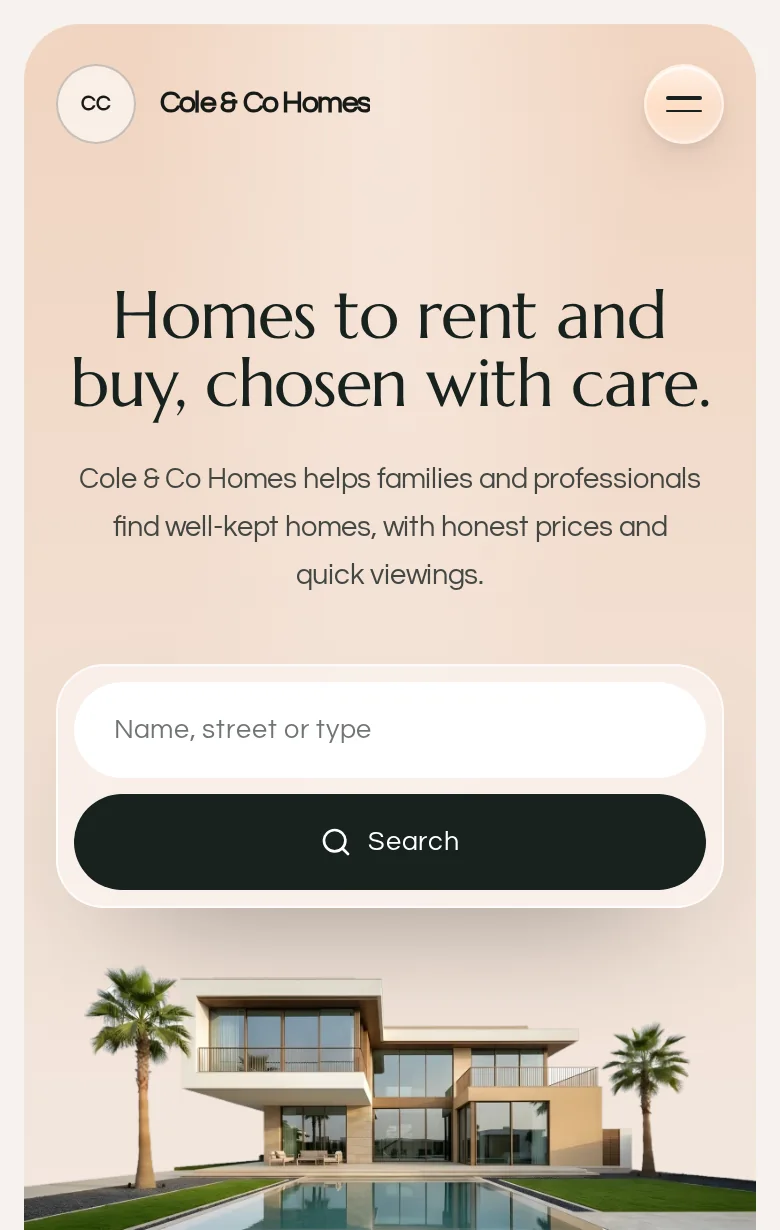
A simple formula works: what you do, and for whom. Ours became "Homes to rent and buy, chosen with care", with one line underneath about helping families and professionals find well-kept homes. Keep the heading under ten words.
About: why people should trust you
A short heading and two or three sentences. Skip the adjectives and give facts: how long you've been doing this and which areas you know street by street. "Since 2015" says more than "experienced".
Locations: where you work
Add the areas where you have properties. They become the area filters and area cards on your website, and every listing needs one. Click Add my locations, type the area name people actually search for, then pick the country, state and city.
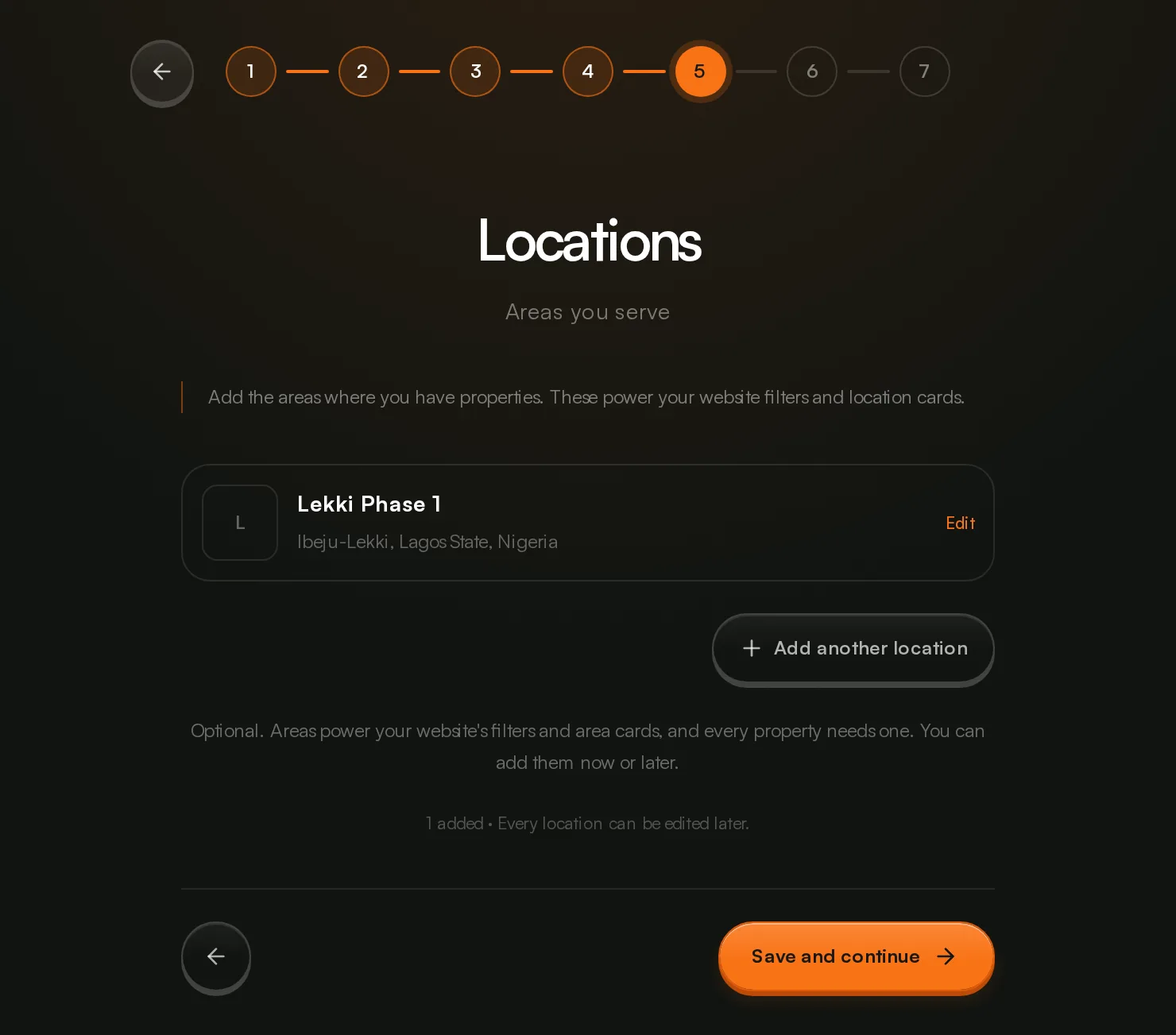
Just want to see your website working first? Use example areas adds four sample areas you can edit or delete later.
Properties: your first listing
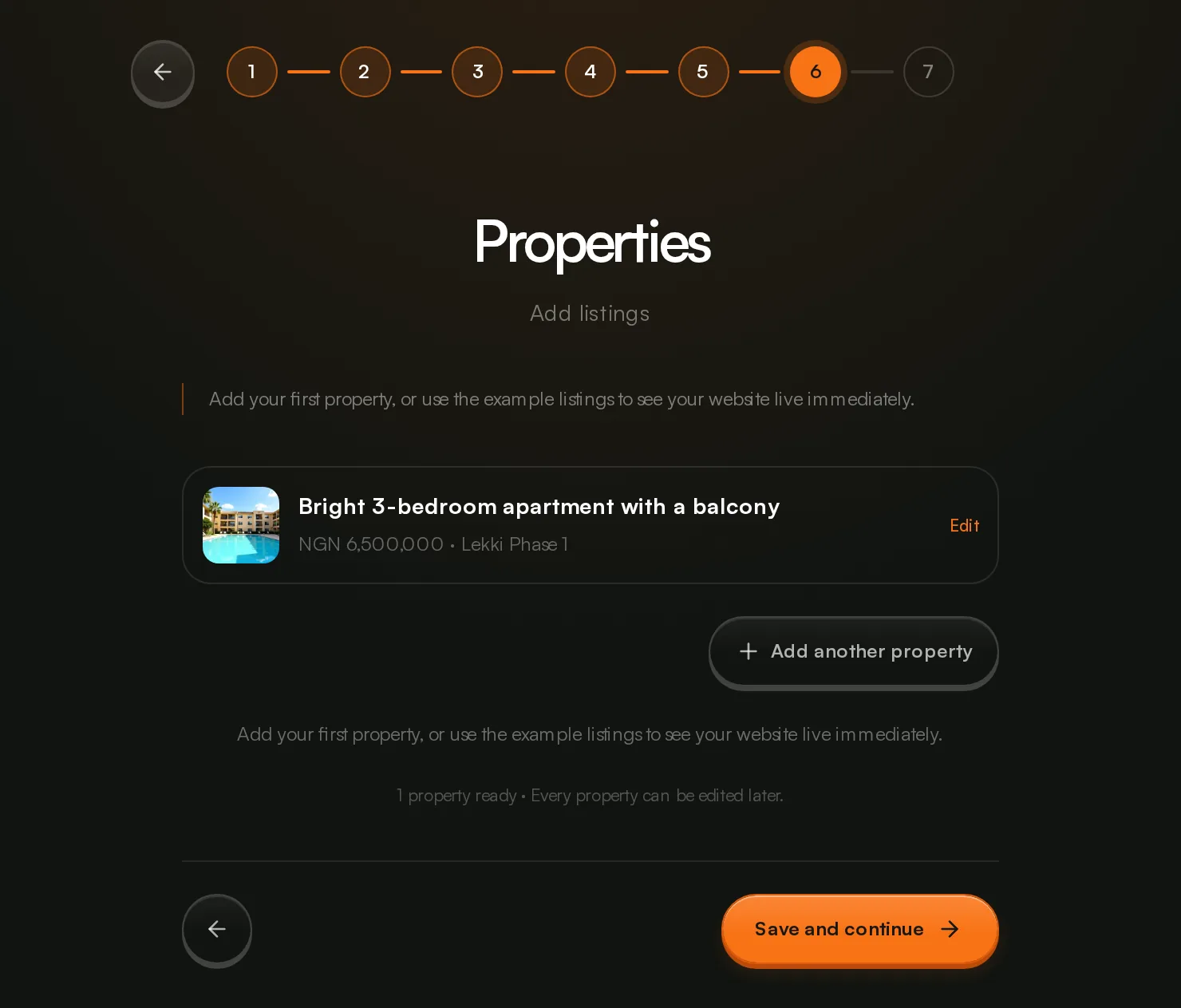
Add at least one real listing. A website that opens with no properties looks unfinished, and visitors leave. Add my property asks what kind of property it is (for sale, for rent, shortlet, land or commercial) and then only shows the fields that fit. Our guide to adding a property listing covers every field.
Ready to launch
The last screen sums up your template, locations and properties. If something's missing, use the arrow to go back.
Step 7: Publish
Click Publish website, then confirm.
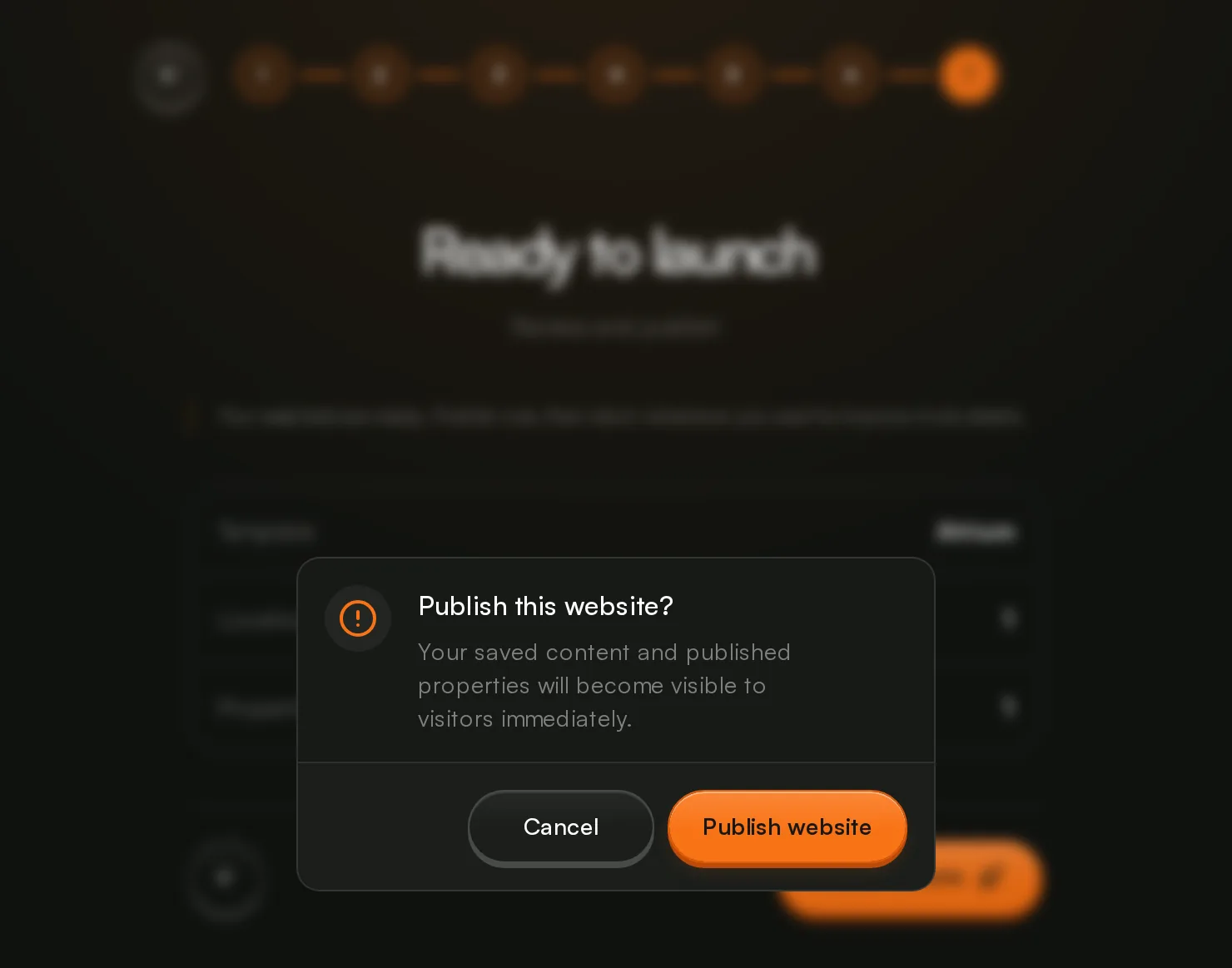
Proply lays out your pages, places your listings and puts it all online. It takes a few seconds. Then you land on your website's overview, with your live address at the top right.
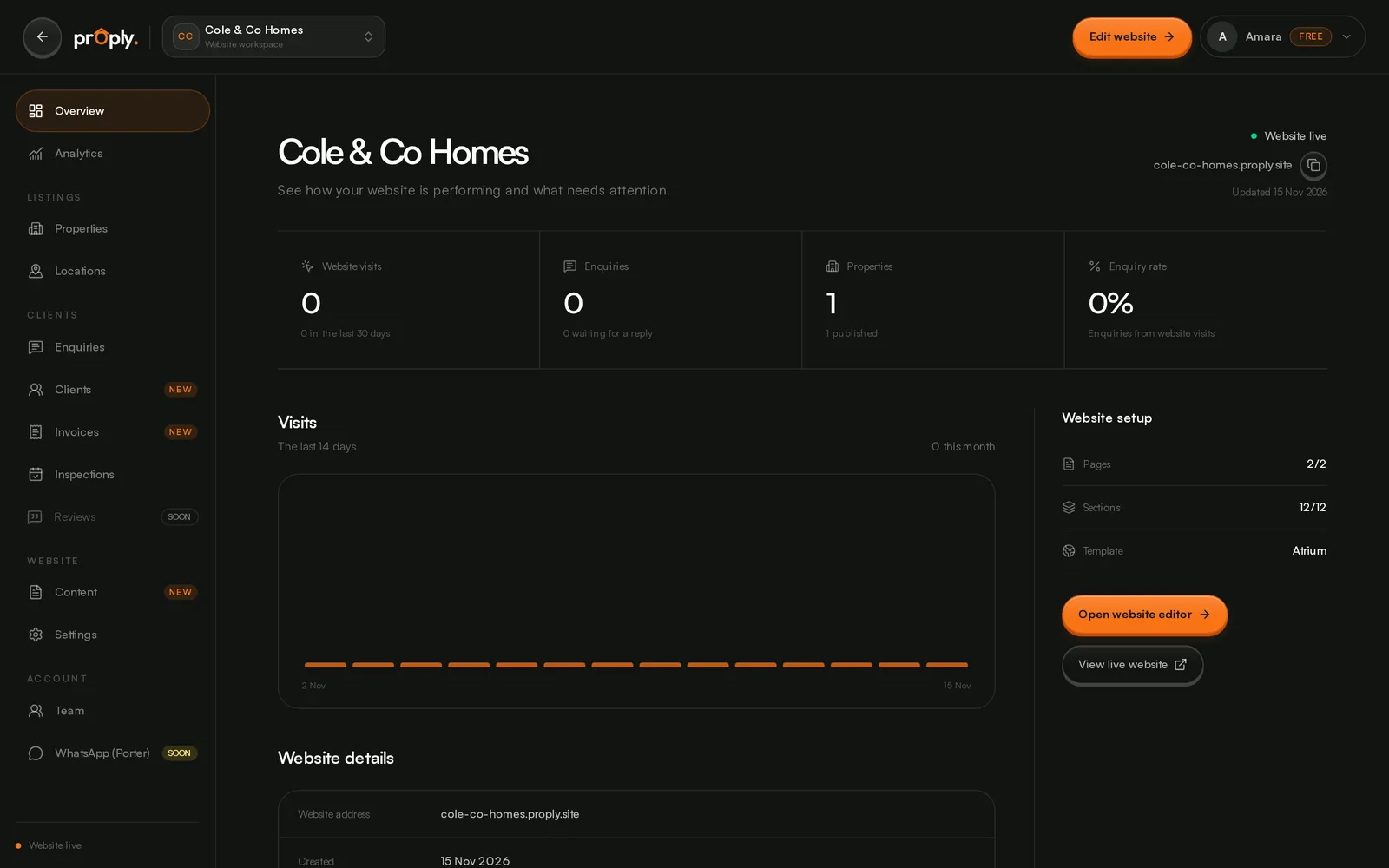
Click View live website and have a look around. Then open it on your phone, because that's where most of your clients will see it first. Here's the sample site on a phone:
Your first week: four things worth doing
A published website is a good start. These four things are what turn it into enquiries:
- Add the rest of your listings. One property looks like a test. The free plan holds up to five; pricing shows what the paid plans hold.
- Put your link everywhere you already talk to clients: your WhatsApp Business profile, your Instagram bio and your email signature.
- Swap the template photos for your own. Your homepage and about section use template photos until you add yours. Real photos of you, your team or your area build trust much faster.
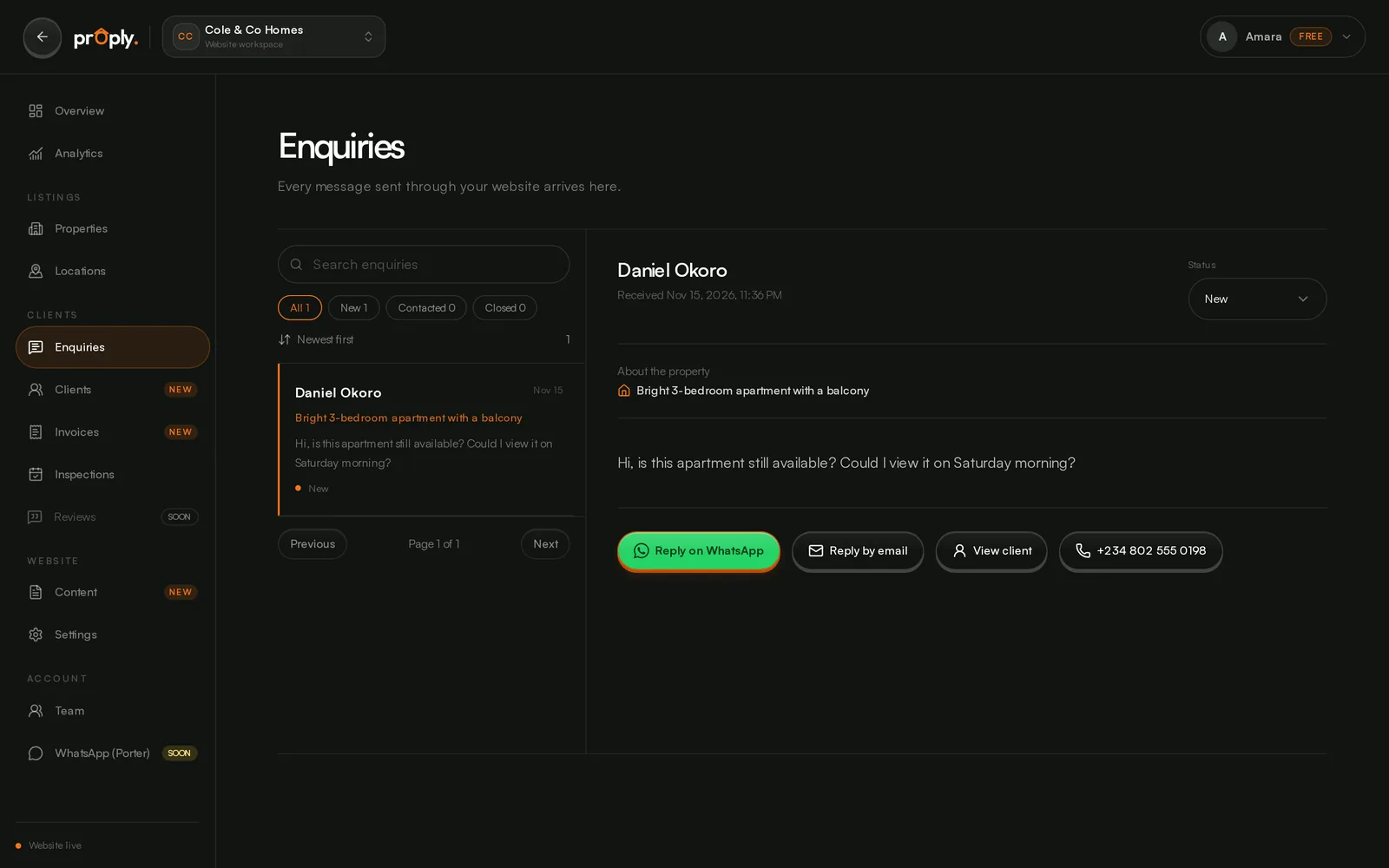
- Answer enquiries quickly. Every message from your website lands in Enquiries and in your email. Here's how to handle them.
Questions people ask
Is it really free?
Yes. The free plan gives you one website with up to five listings on a proply.site address. Paid plans add more listings and your own domain, and the bigger ones let you run several websites.
Can I change things after I publish? Anything, any time. Edit your listings and your text from the dashboard. Listing changes show on your live website as soon as you save.
Can I change my template later? Yes, in Settings. Your content, properties and pictures stay as they are.
Do I need to be good with computers? No. If you can fill in a form and send a WhatsApp message, you can do this.
When you're ready, start at proply.site/signup. Your website could be live before your next viewing.