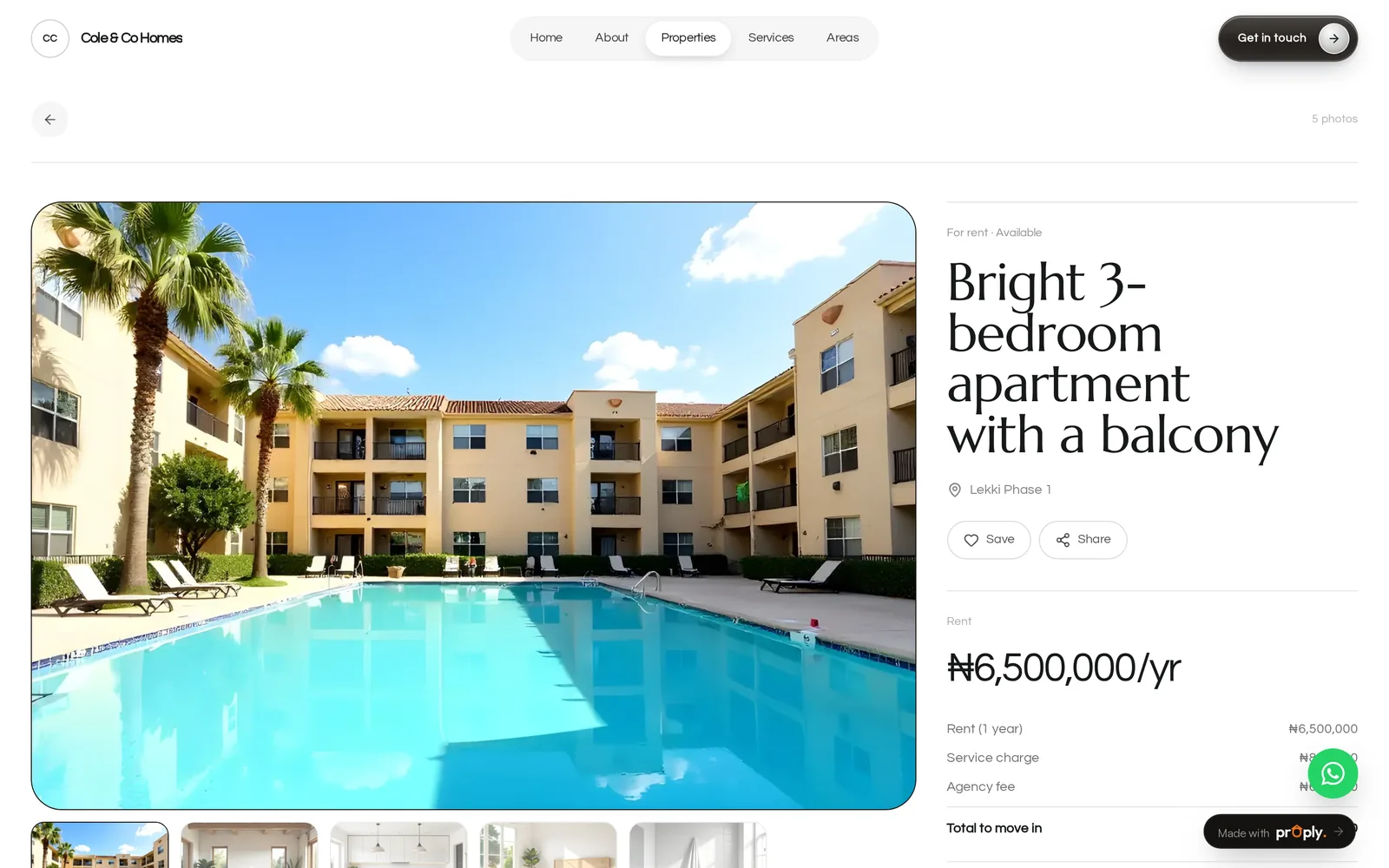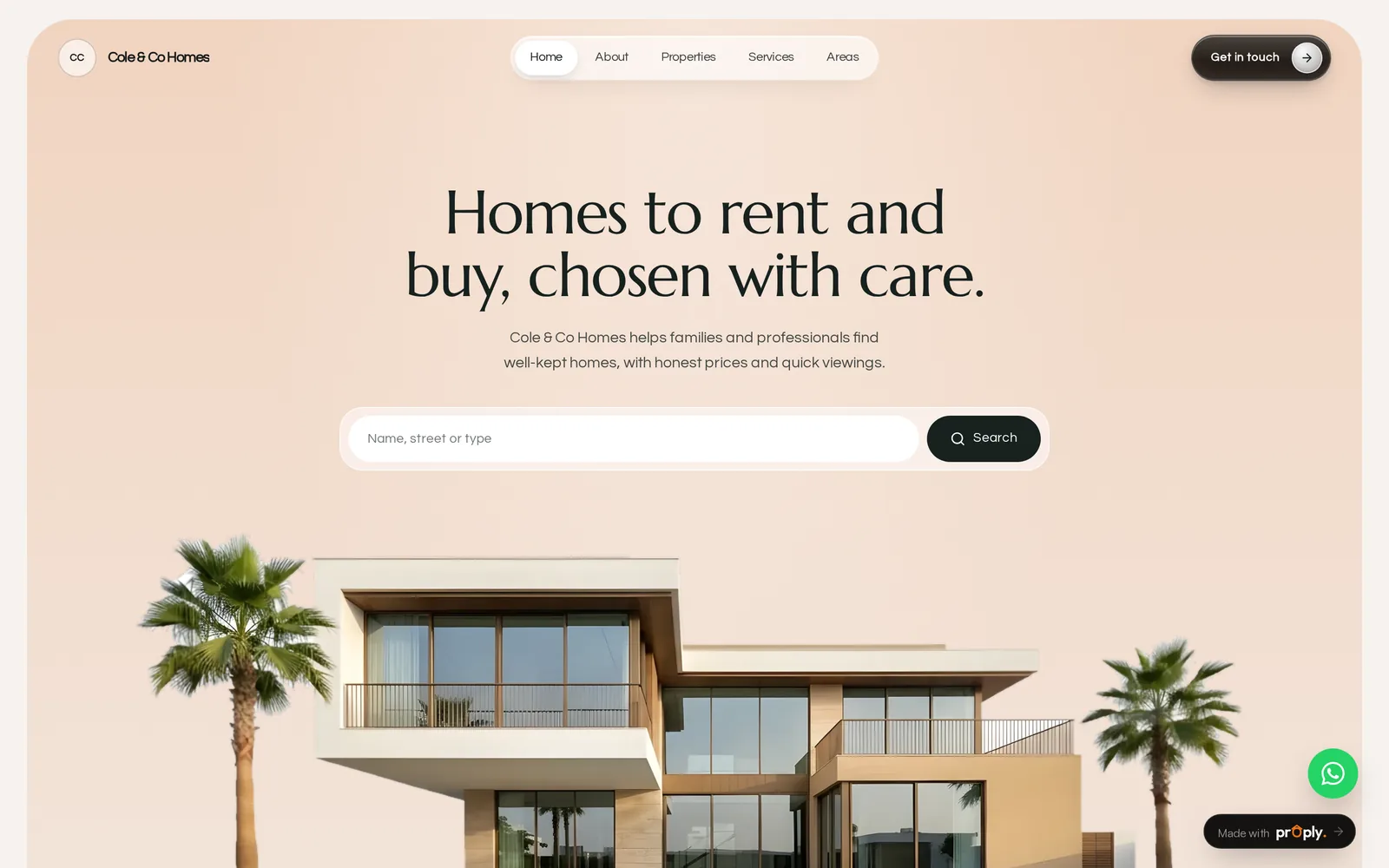
Your Proply website starts on a free address like yourname.proply.site. It works perfectly well, and plenty of agents keep it. But www.youragency.com is easier to remember, looks more established on a flyer, and keeps your name in front of clients instead of ours.
If "DNS records" sounds technical, don't worry. You'll copy two lines from Proply and paste them where you bought your domain. It's about ten minutes of clicking, and then a short wait while the internet catches up. We set up a sample domain while writing this, so the screenshots show exactly what you'll see.
The short version
- In your dashboard, go to Settings › Domain setup and save your domain (start with the www version).
- Choose where you bought your domain to see which menu to open there.
- Add the two records Proply shows you: a TXT record and a CNAME record.
- Come back and click Check connection. When it says Connected, you're done.
Before you start
You'll need three things:
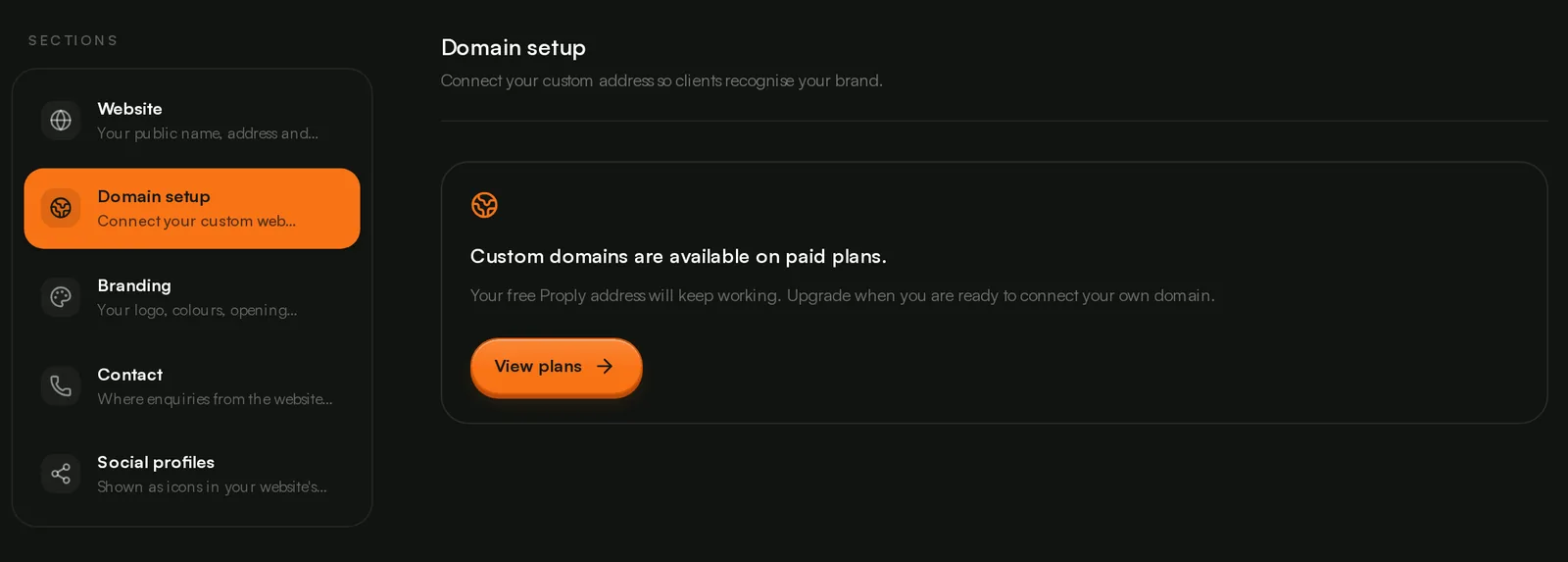
- A paid plan. Custom domains come with every paid plan. On the free plan, this section shows a note and a View plans button instead, and your free address keeps working either way. See the pricing page.
- A domain name. Already own one? Use it. If not, buy one from any registrar. You only need the domain itself, not hosting, because your website is already hosted.
- Your login for wherever you bought the domain, because that's where the two records go.
Step 1: Add your domain
Open your website in the dashboard, click Settings on the left, then Domain setup.
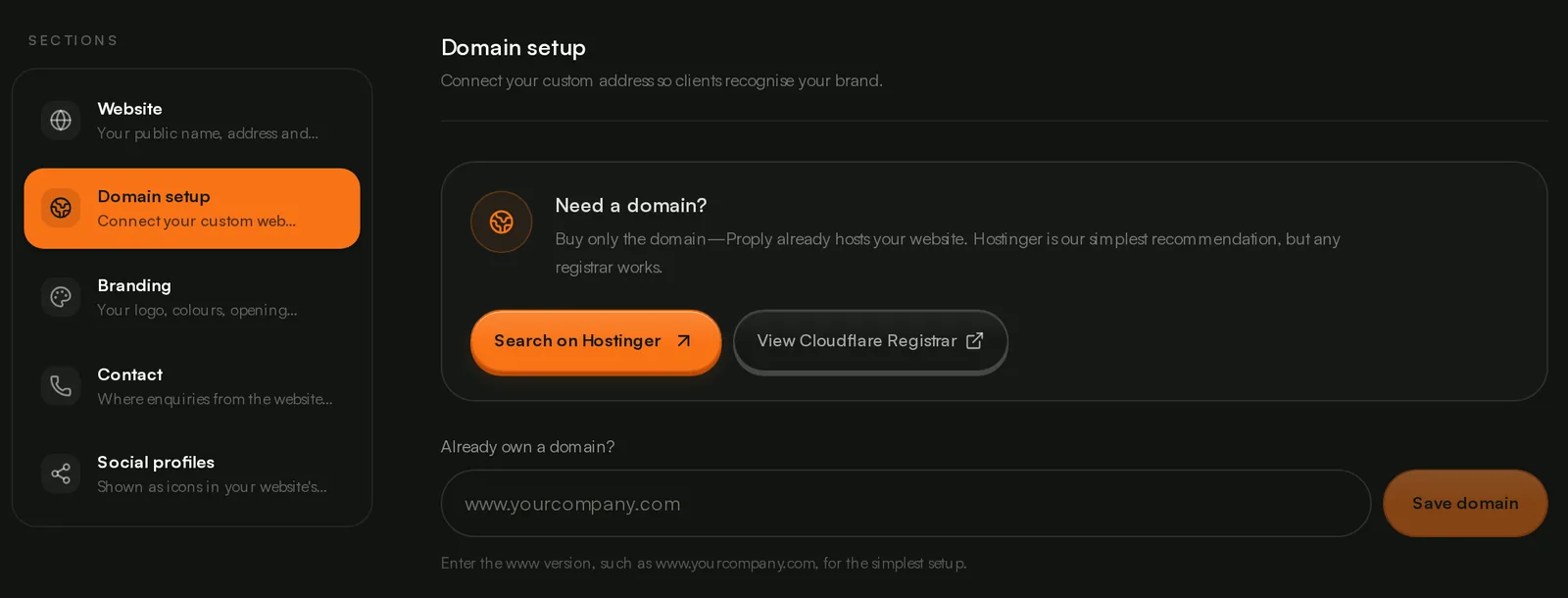
Still need a domain? Search on Hostinger and View Cloudflare Registrar take you to two straightforward places to buy one, but any registrar works.
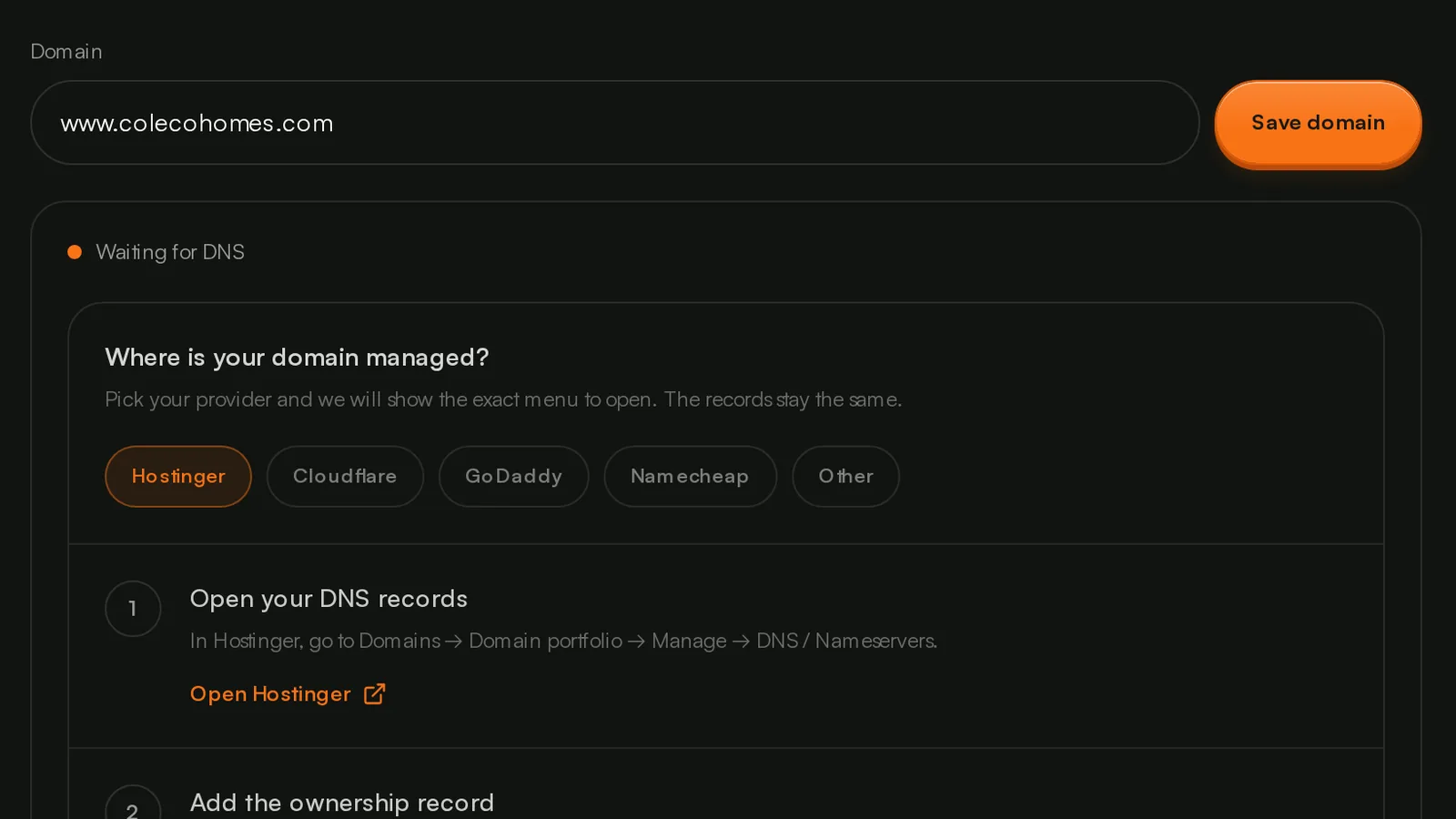
Already have one? Type it under Already own a domain? and click Save domain. Use the www version, such as www.colecohomes.com. It's the simplest to set up and every registrar supports it.
Step 2: Find your DNS settings
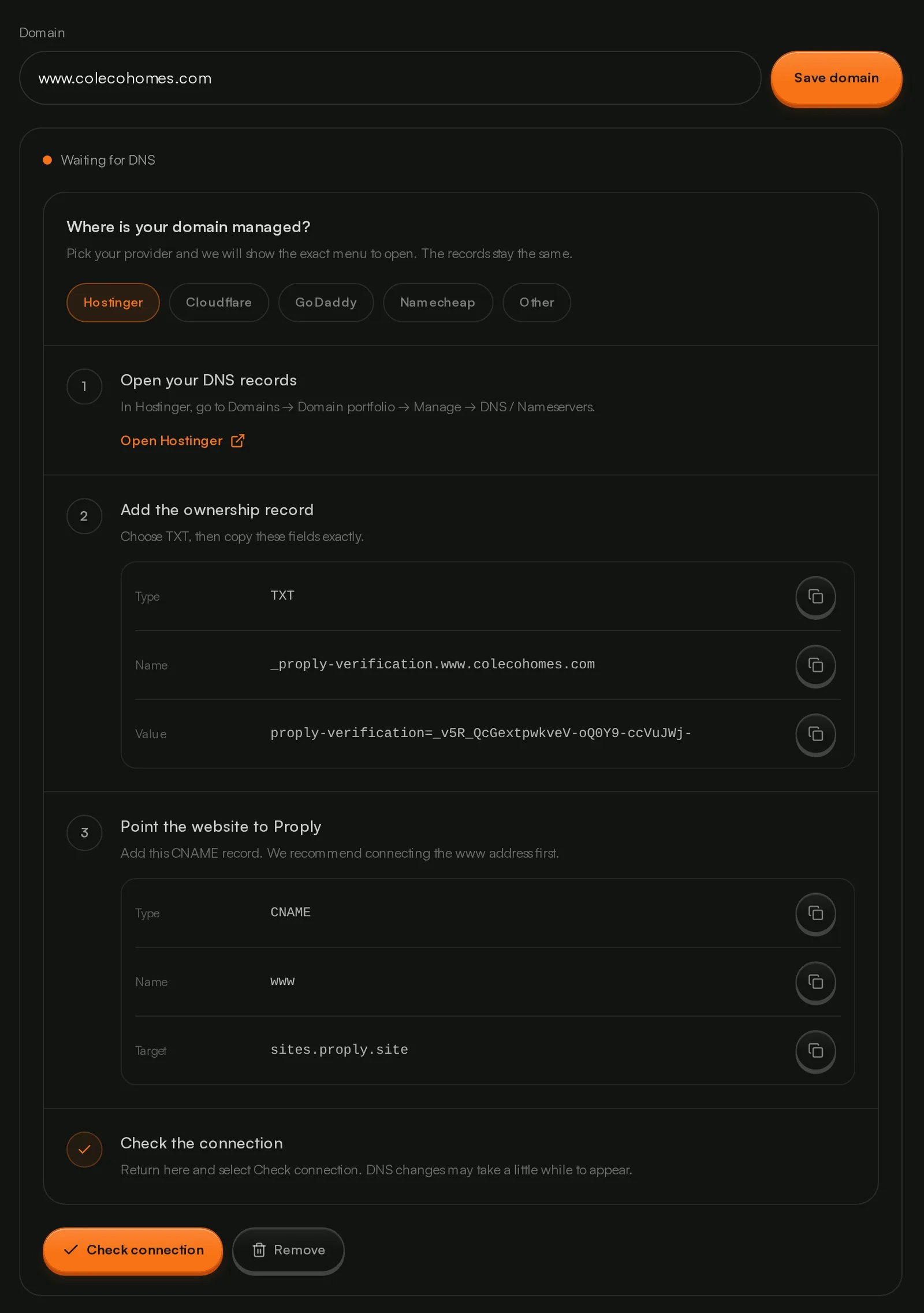
Proply now shows Waiting for DNS and a short guide. Tell it where your domain is managed (Hostinger, Cloudflare, GoDaddy, Namecheap or Other) and it shows you the exact menu to open. Here's where to look at the four big ones:
| Where you bought it | Where the DNS records are |
|---|---|
| Hostinger | Domains → Domain portfolio → Manage → DNS / Nameservers |
| Cloudflare | Websites → your domain → DNS → Records |
| GoDaddy | Domain Portfolio → your domain → DNS |
| Namecheap | Domain List → Manage → Advanced DNS |
Step 3: Add the two records
Open your registrar's DNS page in a new tab, next to Proply. Every value on the Proply screen has a copy button. Use it rather than typing, because one wrong character is enough to stop the connection.
Record 1: the TXT record (proves the domain is yours)
| Field | What to enter |
|---|---|
| Type | TXT |
| Name | _proply-verification.www.yourdomain.com |
| Value | proply-verification= and a code unique to your website |
Copy the exact name and value from the Proply screen; the table only shows their shape.
Watch out for one thing here. Some registrars add your domain to the end of the name for you. If you save the record and the name ends with your domain twice, edit it so the name is only _proply-verification.www.
Record 2: the CNAME record (sends visitors to your website)
| Field | What to enter |
|---|---|
| Type | CNAME |
| Name | www |
| Target | sites.proply.site |
If there's already a CNAME or A record called www, edit or delete it. A name can only point to one place.
Using Cloudflare? Set this record to DNS only (the grey cloud, not the orange one) until the connection is confirmed.
Step 4: Check the connection
Go back to your dashboard and click Check connection. You'll see one of four messages:
- Waiting for DNS. The records can't be seen yet. New records often show up within minutes, but some registrars take a few hours. Try again a bit later.
- Ownership verified, SSL provisioning. Your records are right, and the secure padlock (HTTPS) for your domain is being set up. Give it a little while, then check again.
- Connected. Your website is live on your own domain.
- Connection needs attention. Something isn't right. The message underneath says what, and it's usually a typo in a record or an old record in the way.
Your proply.site address keeps working the whole time, so nothing breaks while you wait.
What about the address without www?
Plenty of people type yourdomain.com without the www. Most registrars have a Forwarding or Redirect setting for exactly this. Point the bare domain at https://www.yourdomain.com, and whichever one people type will reach your website.
If it doesn't connect
"The ownership TXT record has not been found yet." Either the record hasn't spread yet, or the name doesn't match. Compare it character by character with the one Proply shows, and check for the doubled domain from Step 3.
It worked, then stopped. Has anyone changed your nameservers or deleted the CNAME? Moving a domain to a new registrar can wipe its DNS records, so check them again after a transfer.
Cloudflare shows an error. Switch the CNAME to DNS only (grey cloud), wait a few minutes and click Check connection again.
Questions people ask
Will my old proply.site links still work? Yes. Your free address keeps working, so links you've already shared won't break.
How long does it take? Adding the records takes about ten minutes. After that it's often minutes rather than hours, but some registrars are slower to publish changes, so give it until the next day before you worry.
Can I use a domain I already use for email?
Usually, yes. You're only adding a www record and a TXT record, so your email settings stay as they are. Don't delete any MX records.
Once you're connected
Update your link everywhere you shared the old one: your WhatsApp Business profile, Instagram bio, Google Business Profile and email signature. Then open one of your listings on the new address to check everything looks right.
New to Proply? Start with creating your property website, then come back here when you're ready for your own domain.